
Streaming Sticks Slow Down Because Apps Grow and the Hardware Does Not
A streaming stick has fixed memory and storage while apps and home screens keep growing. What slows them down, which fixes work and when to replace one.

Part of the guide: Tech and Audio Buying Mistakes: What Fails and How to Check Before You Buy
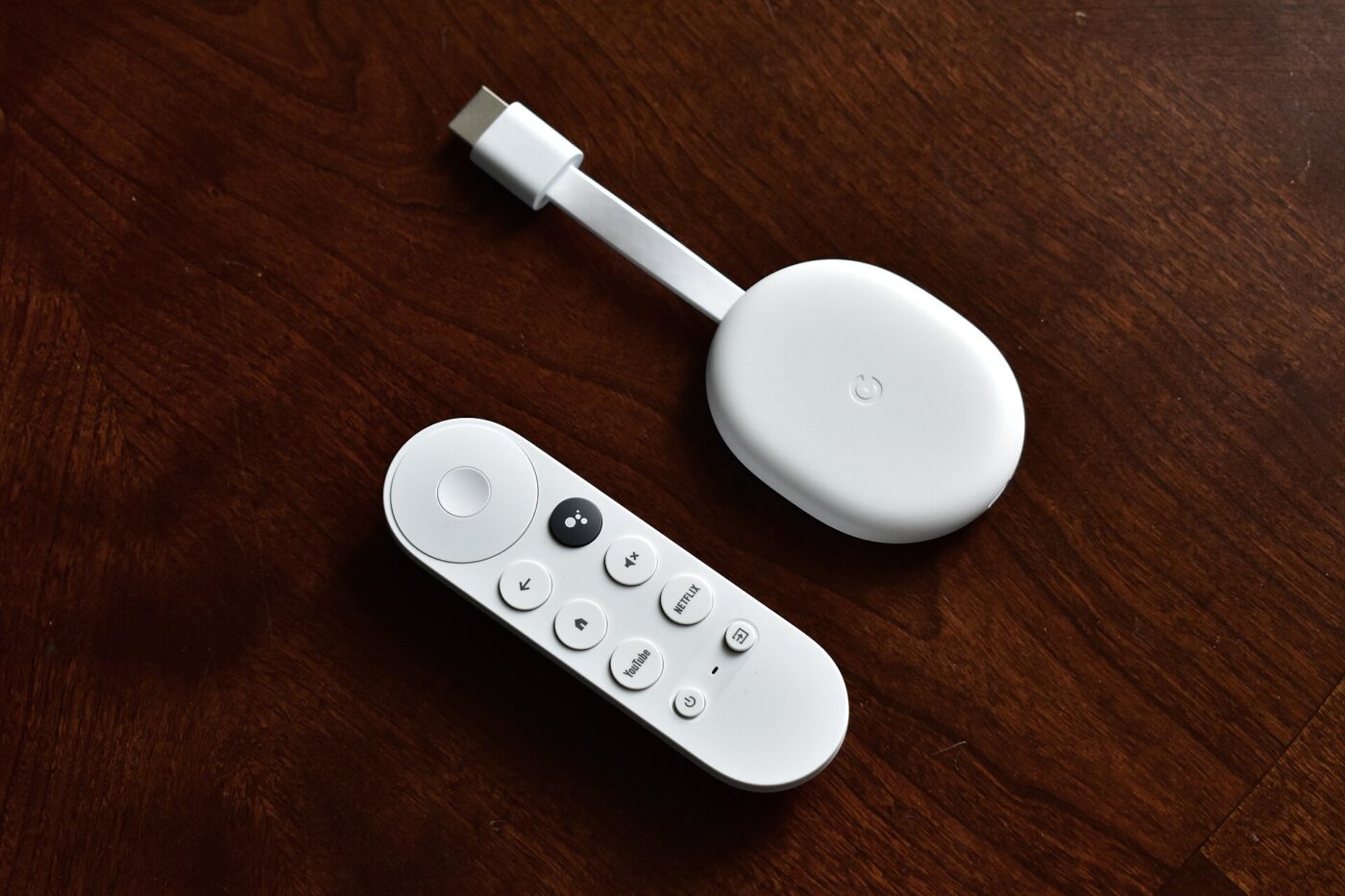
Streaming sticks are cheap, tiny and often bought in a bundle with a TV or on a holiday deal. For the first months they feel fast. Then menus stutter, apps take longer to open and some refuse to update.
Nothing in the stick has broken. The hardware is exactly what it was on day one, while the apps and system software running on it have grown, and the Wi-Fi signal reaching it from behind the TV was never great.
Fear Index · Think twice
Cheap hardware that ages faster than its apps
A stick that felt quick at purchase turns laggy within a couple of years, and a replacement gets bought sooner than planned.
Fixed hardware, growing software
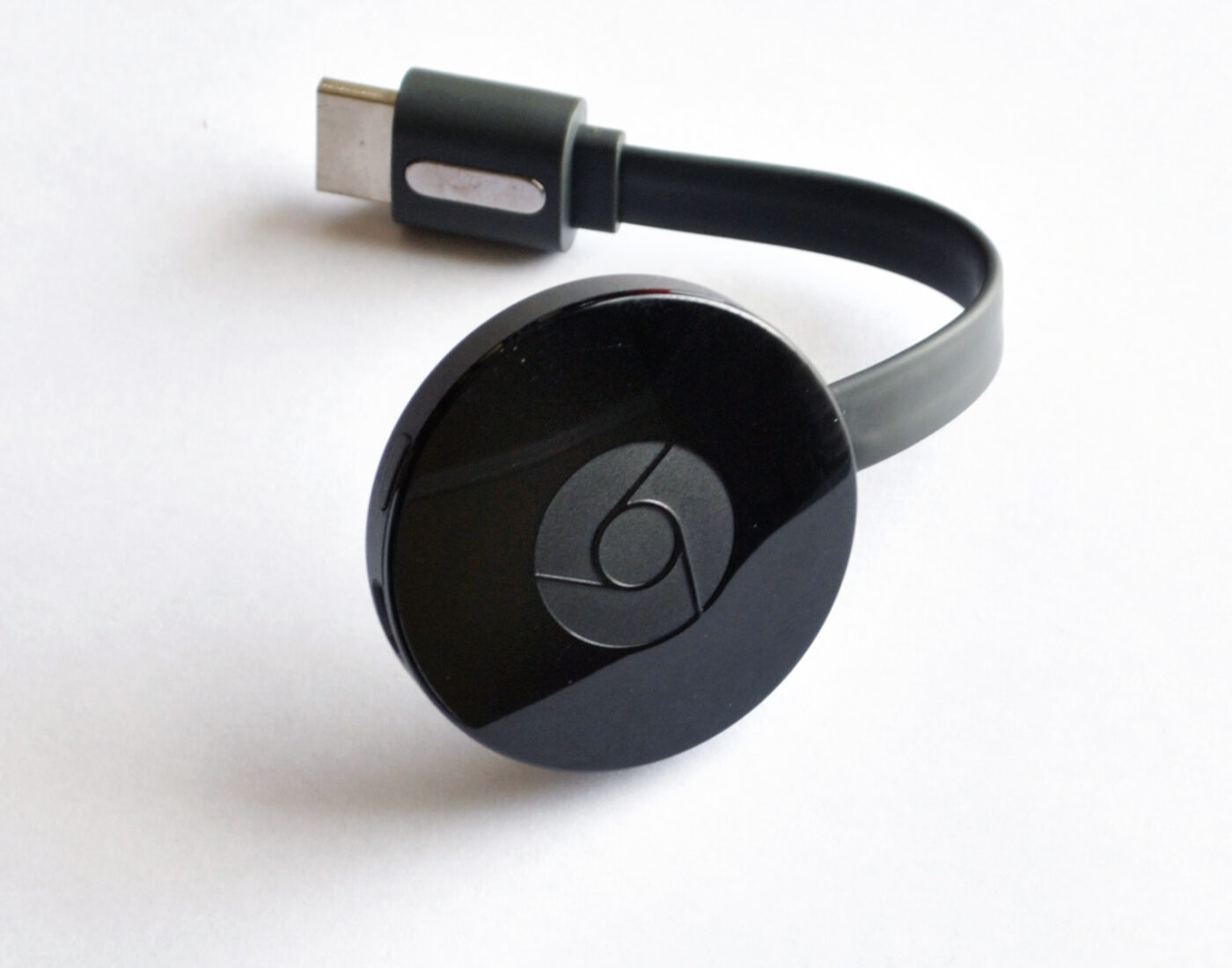
A streaming stick has a fixed amount of memory for running apps and a fixed amount of storage for installing them. Neither can be upgraded on most models. Streaming apps are updated constantly, adding features, profiles, games and preview videos, and each update tends to need more room and more memory than the last.
When storage runs short, the symptoms are specific. Roku’s support page on its Can’t run app and Insufficient memory errors says they occur with an internet connection issue or low storage space, because the device lacks room to store and install apps. Its fixes are to restart, remove other apps, and on models with a microSD slot, add a card to expand app storage.
Memory pressure is less visible. Switching between apps reloads them from scratch, home screens with animated previews stutter, and the remote feels laggy. Many sticks list storage on the box but not memory, which makes comparing headroom difficult.
| Symptom | Likely cause | First thing to try |
|---|---|---|
| App will not install or update | Storage full | Remove unused apps |
| Menus lag, apps reload | Memory pressure, background apps | Restart; close background apps |
| Video buffers or drops quality | Weak Wi-Fi or network congestion | Move stick out from behind TV |
| Slow after months of use | Cached data, accumulated apps | Clear cache, remove apps |
| Stick restarts on its own | Power or overheating | Use the supplied power adapter |
Wi-Fi behind the TV

A stick plugs straight into the back of the TV, which is close to the worst place in the room for a wireless signal. Roku’s Wi-Fi guidance notes that TVs can block Wi-Fi signals and recommends using an HDMI extender to move a streaming stick away from the back of the set. It also advises moving the device and router closer together, keeping walls, cabinets and large furniture out of the path, and keeping the router away from cordless phones, microwaves and baby monitors.
Band matters too. Roku notes that 5 GHz is faster and less crowded than 2.4 GHz where both devices support it. For 4K streaming, Netflix recommends a connection of 15 Mbps or higher, and that speed has to reach the stick itself, not just a phone standing next to the router.
- Run the speed test on the stick, if it has one, rather than on a phone.
- Use the HDMI extender that many sticks include to move the stick clear of the TV panel.
- Prefer 5 GHz when the router and stick both support it.
- Try Ethernet through an adapter or a box with a port; it removes Wi-Fi from the equation.
- Pause big downloads on other devices while testing.
Home screens, background apps and clutter

Low-priced streaming platforms lean heavily on promoted content, and home screens full of autoplaying trailers and banners use memory, processing and network data before you have chosen anything to watch. Apps opened once and forgotten can keep running in the background or hold on to cached data.
The fixes that platform makers document are unglamorous but effective. Google’s help page for its streaming devices suggests clearing cached data for all apps, noting that it only removes temporary data and you remain signed in, and uninstalling apps you do not use. Roku recommends a system restart by unplugging the power cord for at least 10 seconds. Installing pending app and system updates is also worth doing, since fixes for sluggishness often arrive that way.
A factory reset clears accumulated clutter more thoroughly, but it signs you out of everything. Keep it as a last step before replacing the device.
Delete apps you have not opened in months. On a stick with little storage, every unused app competes with the ones you actually watch for space and updates.
When replacing beats fixing
If a stick is still slow after clearing storage, fixing the Wi-Fi path and restarting, the hardware has probably fallen behind the software. Spending an evening each month nursing it along is a real cost, and the cheapest model in a lineup is usually the first to reach that point.
When replacing, buy headroom rather than resolution alone. More storage, a current Wi-Fi standard and an Ethernet port or supported adapter matter more for long-term smoothness than a feature list. A streaming box that sits beside the TV instead of behind it also avoids the signal problem entirely. For a secondary TV that only runs one or two apps, the entry model is still fine.
The shortlist
Paid links: we earn a commission if you buy through the buttons below, at no extra cost to you. As an Amazon Associate I earn from qualifying purchases.
Compared on headroom and connection
| Product type | Best for | Risk estimate | Where to buy |
|---|---|---|---|
| Wi-Fi 6 4K Streaming Stick | Tight budgets, strong Wi-Fi | 36/100 | See listings on Amazon |
| 4K Streaming Box with Ethernet Port | Main TV, longest life | 22/100 | See listings on Amazon |
| Ethernet Adapter for Streaming Sticks | Weak Wi-Fi behind the TV | 30/100 | See listings on Amazon |
Risk estimate is our editorial Fear Index for the product type (lower is safer), not a customer rating. How it is scored. The buttons open Amazon search results rather than one listing, so check the model on the product page.
4K Streaming Box with Ethernet Port
For the main TV, extra headroom and Ethernet keep it responsive for longer than the cheapest stick.
- Wired connection removes Wi-Fi problems
- Sits beside the TV, not behind it
- More headroom for app growth
- Costs more than a stick
- Another box and cable to place
Ethernet Adapter for Streaming Sticks
If buffering is the main complaint, a wired connection may rescue the stick you already own.
- Removes the TV from the signal path
- Often powers the stick too
- Much cheaper than replacing it
- Compatibility depends on stick model
- Needs a network cable to the TV
More: Gaming & Entertainment analyses and how the Fear Index is scored.
Sources
Questions people actually ask
Why is my streaming stick so slow?
Usually a mix of limited storage and memory, growing apps and a weak Wi-Fi signal behind the TV. Clearing cache, removing unused apps and restarting are the first steps.
Does clearing cache on a streaming device delete my apps?
No. Google notes that clearing cached data only removes temporary data and you remain signed in to your apps.
How do I fix buffering on a streaming stick?
Move it away from the back of the TV with an HDMI extender, use 5 GHz Wi-Fi if available, reduce obstructions or use Ethernet. Netflix recommends 15 Mbps or higher for 4K.
When should I replace a streaming stick?
When it stays slow after freeing storage, restarting and improving the connection, or when apps stop supporting it. Buy more storage and a wired option next time.